
Linux audio production no longer requires a Windows plug-in bridge for every serious workflow. Aurora DSP's native Linux releases include standalone applications plus VST3, LV2 and CLAP plug-ins for x86_64 and ARM64. This guide shows the supported, rootless installation path with the included install.sh script, explains where every format is placed and covers the audio-system checks that matter after installation.
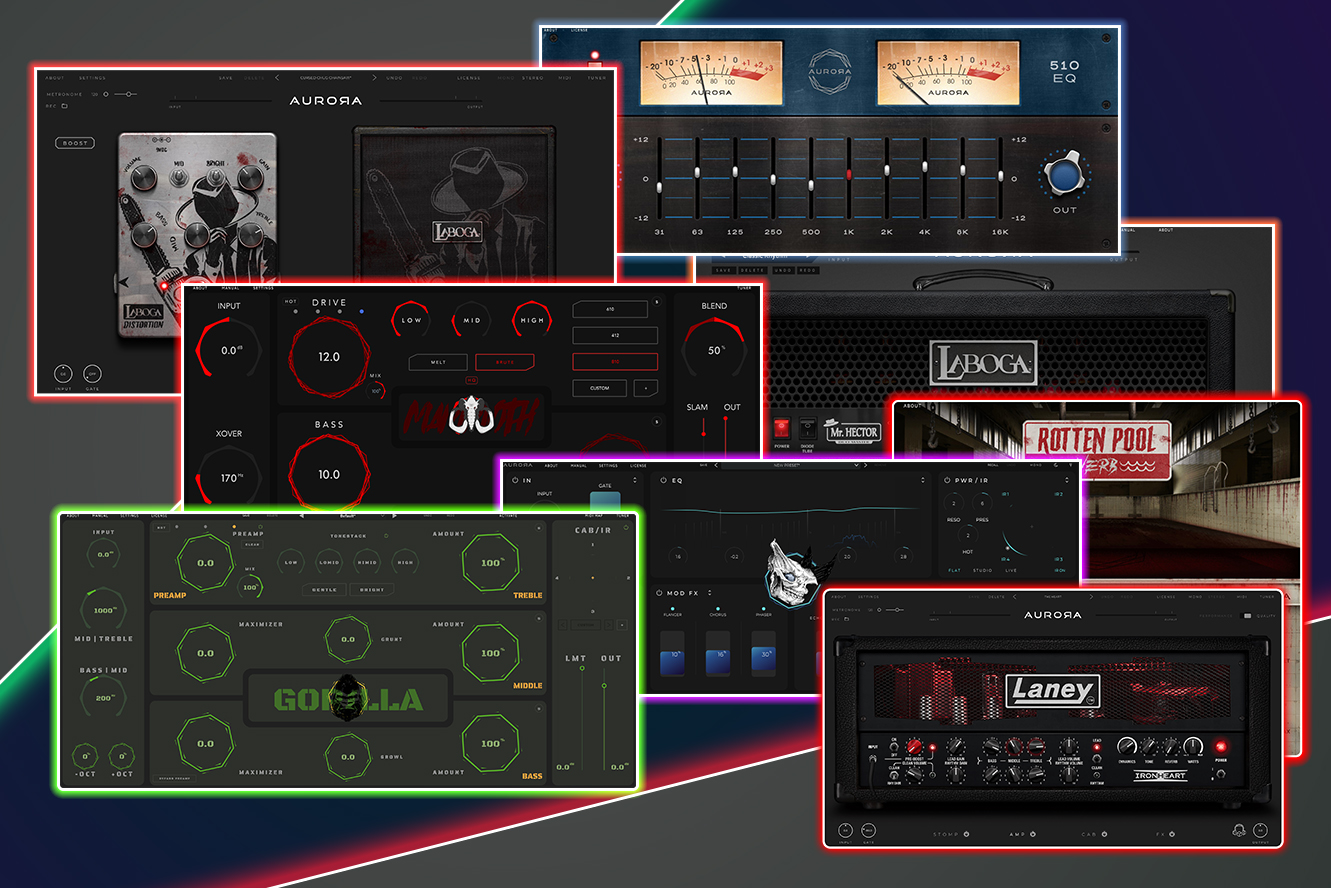
Aurora DSP's wider plug-in family. Linux availability is product-specific; the currently published native Linux builds are listed below.
Important filename: the installer is install.sh, not install.ssh. It is a Bash shell script included in the extracted Linux release folder.
Which Aurora DSP plug-ins currently have native Linux builds?
The current Aurora DSP download warehouse contains verified native Linux releases for these products:
Mammoth
Dual-band bass processing with a protected low-frequency foundation, driven character path, cabinet responses and standalone operation.
Rhino
A complete guitar-processing environment with preamps, cabinet and IR tools, effects, power-amp shaping and standalone operation.
Banshee
A focused vocal-production suite supplied as native Linux standalone, VST3, LV2 and CLAP builds.
This Heavy Earth: Fleshrot Suite
A complete heavy-guitar signal chain with native Linux binaries for both supported processor architectures.
Product pages are the source of truth for platform availability. A Linux button appears only when a release artifact is actually published for that product.
Before you install: account, download and DAW checks
- Sign in or create an Aurora DSP account. Installer links are protected by the customer account. Open the product page, choose the Linux trial or owned download and authenticate when prompted.
- Download the Linux ZIP from Aurora DSP. Do not use mirrors, re-uploaded archives or a direct URL copied from another account.
- Check your CPU architecture. Run
uname -m. The installer supportsx86_64/amd64andaarch64/arm64. - Confirm the format your DAW scans. The release supplies VST3, LV2 and CLAP, but the best choice is the native format supported by your host.
- Finish or save important sessions. Plug-in installation is simple, but audio-system or DAW updates should not be mixed into the same maintenance window.
The account wall protects release integrity, trials, licences and future updates. It also means a copied installer URL is not a substitute for the account that owns or is evaluating the product.
How to install an Aurora DSP plug-in on Linux with install.sh
Step 1: extract the downloaded ZIP
Use your file manager's Extract action or the unzip command. Keep the archive's folder structure intact: the top-level script selects the correct files from its adjacent ARM64 or x86_64 directory.
cd ~/Downloads
unzip Product_linux.zip
cd Product_linux
The exact archive and directory names depend on the product. Instead of typing a guessed path, you can type cd and drag the extracted folder into many terminal applications.
Step 2: run the included user-local installer
chmod +x install.sh
./install.sh
chmod +x is needed only if the executable permission was lost during download or extraction. The second command starts the actual installer.
Do not run the top-level installer with sudo. It is deliberately designed to install into your own home directory. Current Aurora DSP Linux installers reject a root or sudo launch to prevent home-directory files from receiving the wrong owner.
Step 3: restart or rescan your DAW
Close and reopen the host, or use its plug-in manager to run a full rescan. Search for the product name under Aurora DSP. If more than one format is enabled, the DAW may list VST3, LV2 and CLAP separately; choose one format for a project so that presets and automation remain predictable.
Where does install.sh place the files?
The recommended installer is user-local and does not modify system directories. Depending on the product, the standalone binary and its supporting files are installed below ~/.local, while plug-in formats use their conventional per-user locations:
- Standalone launcher:
~/.local/bin/PRODUCT - VST3:
~/.vst3/PRODUCT.vst3 - LV2:
~/.lv2/PRODUCT.lv2 - CLAP:
~/.clap/PRODUCT.clap - Desktop entry and product data: below the relevant
~/.local/sharedirectory
A leading dot makes these directories hidden in most file managers. Use Ctrl+H to show hidden files, or inspect them from the terminal. The installer creates missing directories automatically.
VST3, LV2 or CLAP: which Linux plug-in format should you use?
VST3
Choose VST3 when it is the established native Linux format in your DAW or when you exchange projects with macOS and Windows users who also load VST3.
LV2
Choose LV2 for Linux-native hosts that integrate it deeply. It is a mature Linux audio format and a natural fit in many open-source production environments.
CLAP
Choose CLAP when your host supports it well. CLAP defines a stable interface between DAWs and plug-ins and includes modern host-integration capabilities.
Standalone
Use the standalone application for a fast installation check, practice or a live workflow that does not need a DAW plug-in instance.
There is no universal winner. Host support and project portability are more important than installing every format. Aurora DSP supplies all three so the user can choose without a Windows bridge.
x86_64 and ARM64 Linux support
The top-level installer reads the machine architecture and selects the matching native payload automatically:
uname -m
# x86_64  → x86_64 release
# aarch64 → ARM64 release
You do not need to move files out of the architecture folders. If the command returns an unsupported value, the installer stops instead of copying an incompatible binary. This fail-closed behavior is intentional.
What about DEB, RPM, Arch and generic system packages?
The release archives also contain architecture-specific packages for common distribution families. These are intended for users or administrators who explicitly want a system-wide installation:
- DEB packages for Debian and Ubuntu families;
- RPM packages for Fedora and related distributions;
.pkg.tar.zstpackages for Arch Linux;- a generic system package for other supported environments.
Those package-manager paths can legitimately request administrator privileges because they write system-wide files. The top-level ./install.sh described in this guide does not. Choose one installation method. Mixing user-local and system-wide copies can make a DAW scan two versions of the same plug-in.
PipeWire, JACK and ALSA: what changes after plug-in installation?
Installing a plug-in and configuring the Linux audio stack are separate tasks. The Aurora DSP installer places binaries where a host can discover them; your DAW still connects to the interface through its selected audio backend.
PipeWire provides a low-latency, graph-based engine and compatibility for applications built around PulseAudio, JACK, ALSA and GStreamer. A dedicated JACK setup remains valid where it is already stable. The practical choice is the one your distribution, interface and DAW support reliably.
Start with a conservative buffer, confirm clean playback, then reduce it only when live monitoring requires lower latency. Smaller buffers reduce the time between input and output but leave less processing time before an xrun, click or dropout. For mixing, a larger buffer is usually a better trade-off than an unstable session.
Community reports vary because hardware, kernels, distributions and host versions vary. The useful common advice is to build a stable workstation, avoid changing the audio stack in the middle of a critical project and test interface support before committing a production to a new system.
Troubleshooting: the plug-in does not appear in the DAW
The installer says permission denied
Run chmod +x install.sh, then ./install.sh as your normal desktop user. Do not switch to root.
The host finds no plug-in
Confirm the selected format is enabled, add the corresponding hidden directory to the host's scan paths if required, and run a full rescan.
The standalone works but the plug-in does not
This usually narrows the issue to host format support, scan paths or sandbox permissions rather than the product payload itself.
The DAW lists duplicate versions
Check whether both user-local and system-wide copies are installed. Remove the older path and rescan before reopening the project.
The interface clicks or drops out
Increase the audio buffer, confirm the sample rate, close competing real-time loads and test the same session with the standalone application.
You need custom plug-in directories
Run ./install.sh --help. Products that expose custom paths document the supported --vst3-dir, --lv2-dir, --clap-dir or prefix options there.
If the issue remains, keep the terminal output, distribution name and version, uname -m result, DAW version, selected plug-in format and audio backend. That information is much more useful to support than “the plug-in does not work.”
How to update or uninstall an Aurora DSP Linux plug-in
For an update, download the new release from your account, extract it to a fresh folder and run its top-level installer. Do not merge a new ZIP into an old extracted directory.
The standard user-local uninstall command is:
./install.sh --uninstallRun it from the matching product release folder. Some packages also include a dedicated uninstall.sh; follow the README shipped with that exact version. After removal, rescan the DAW so its plug-in database no longer points at the deleted binary.
Verify the download before you trust it
Each verified Aurora DSP Linux archive includes SHA256SUMS.txt. A checksum lets you detect an incomplete or modified file. For a manual check, change into the extracted release directory and run:
sha256sum -c SHA256SUMS.txtSome product installers also verify their selected payload automatically when a SHA-256 utility is available. A checksum proves file integrity relative to the manifest; the account-protected Aurora DSP download remains the trusted source.
Linux audio at Aurora DSP: Dagon and DriveThru roadmap
Roadmap preview: the following products are planned and are not currently available for purchase or download. Names, scope and release timing may evolve during development.
Dagon is the planned Aurora DSP drum-processing line. Linux is part of its platform strategy from the beginning, alongside macOS and Windows, with the goal of full native support for drum recording, shaping and mix workflows rather than a later compatibility layer.
DriveThru is the planned wider ecosystem for connected tone and signal-chain workflows. Its direction is cross-platform: products and components should move coherently between creation, capture and practical use instead of treating Linux as an afterthought.
This roadmap matters because native support is more than compiling a binary. It includes installers, account delivery, updates, plug-in formats, architecture coverage, product pages, documentation and repeatable support diagnostics. The same release discipline used for today's Aurora DSP Linux builds is the baseline for Dagon and DriveThru.
Linux audio installation FAQ
Do Aurora DSP Linux plug-ins require Wine or yabridge?
No. The products listed in this guide have native Linux binaries. Wine-based bridges are relevant to Windows-only plug-ins, not to Aurora DSP's published Linux VST3, LV2, CLAP and standalone builds.
Should I run install.sh with sudo?
No. Run the top-level ./install.sh as your normal user. Only an explicitly selected distribution package or generic system-wide package may require administrator privileges.
Can I install on an ARM64 Linux computer?
Yes, for the products listed above. Their release archives contain ARM64/aarch64 and x86_64 binaries, and the installer selects the current architecture automatically.
Which DAWs can load the plug-ins?
Any native Linux host that correctly supports at least one supplied format can potentially load the plug-in. Confirm the DAW's current VST3, LV2 or CLAP support and scan-path rules before choosing a format.
Why is an Aurora DSP account required?
The account connects the download to a trial or ownership entitlement, protects installer delivery and provides a stable place for updates, licences and future release access.
Further Linux audio reading
Linux audio is a fast-moving ecosystem, and no single setup represents every distribution or studio. These resources offer complementary perspectives:
- Audio On Linux — an ongoing catalog of Linux-native instruments, effects and production tools;
- Amadeus Paulussen: Linux Audio — a concise view of FOSS music production and the growing Linux vendor ecosystem;
- Linux and audio production discussion on Reddit — varied community experiences with DAWs, hardware, PipeWire, JACK and long-term workstation stability;
- Fugue State Audio: switching to Linux for music production — a practical account of distributions, native DAWs, plug-in formats and workflow trade-offs;
- PipeWire project — the primary project overview for the modern Linux audio and video engine;
- CLAP Audio Plugin API — the primary specification and implementation resources for the CLAP format.
Community articles are useful experience reports, not compatibility guarantees. Your product page, release README and installer output remain authoritative for a specific Aurora DSP build.
Start with a native Aurora DSP Linux build
Choose a supported product, sign in to protect your download and install the correct x86_64 or ARM64 VST3, LV2, CLAP and standalone files with one rootless script.
Explore Aurora DSP plug-ins →